

How to Connect to WIFI using a Google Pixel Phone
In this tutorial, you will learn the following how to's:
• Access Wi-Fi
• Connect to a Wi-Fi network
• Forget a Network
• Connect to a Wi-Fi network
• Forget a Network
When connected to a Wi-Fi network, the  Wi-Fi connected icon will be displayed in the Notification bar.
Wi-Fi connected icon will be displayed in the Notification bar.
Access Wi-Fi
Swipe down from the Notification bar, then select and hold the Internet icon.

Connect to a Wi-Fi network
- Open your device's Settings app.
- Tap Network & internet and then Internet.
- Turn on Wi-Fi by toggling the Wi-Fi switch.
- Select the desired network by tapping a listed network.
- If it needs a password, you'll find the Lock
icon
After you connect:
- The network is saved.
- When your device is near and Wi-Fi is on, your device automatically connects.
Note: If connecting to a UWM secure network, you must enter your ePanther login information and password that you use to access other UWM products like your UWM email, Canvas, etc. Once entered, you will select Connect. Secure networks including UWM secure networks, will display with a Lock icon.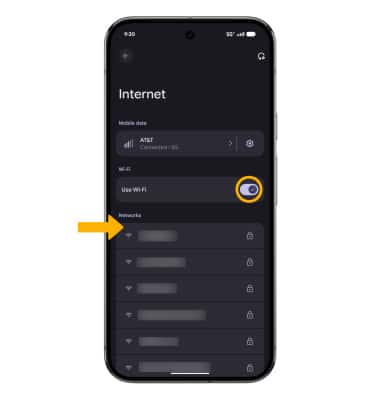
Forget a Network
- Open your phone’s Settings app.
- Tap Network & internet and then Internet.
- Make sure that Wi-Fi is on.
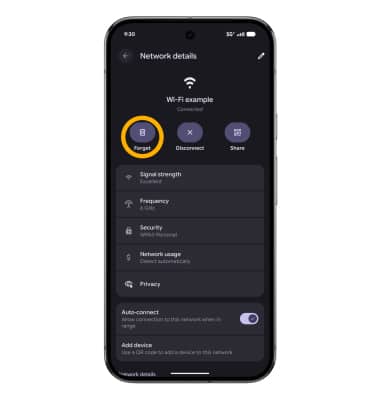
- Touch and hold a saved network.
- Tap Forget.
Additional Troubleshooting
For additional Wi-Fi troubleshooting on Google Pixel phones, see the following: