

Canvas Portfolios - Creating an Evaluation Portfolio
- Creating a New Evaluation Portfolio
- Adding Portfolio Details
- Adding Evidence Requirements
- Adding and Managing Sections
- Managing Courses
- Saving a Portfolio
- Publishing a Portfolio
- See Also
Creating a New Evaluation Portfolio
Go to the portfolio home page.
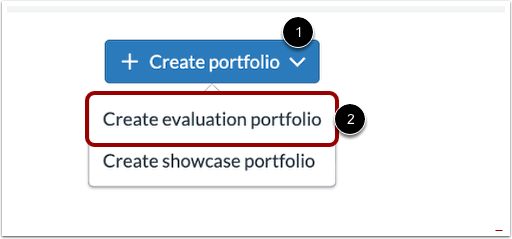
From the Create portfolio drop-down menu, select Create evaluation portfolio.
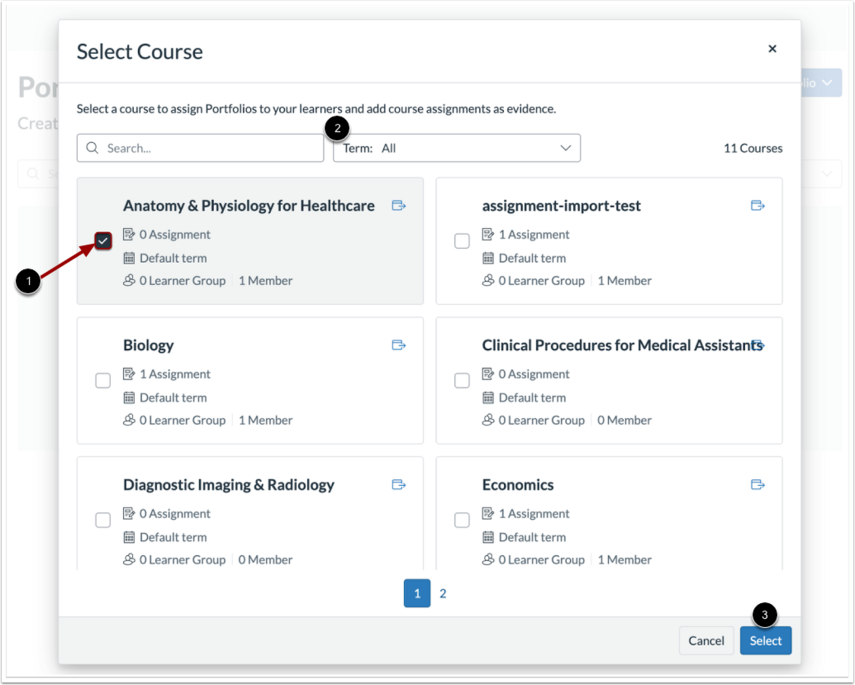
Select one or more courses to assign the portfolio. Students enrolled in those courses are automatically assigned to the Evaluation Portfolio.
Select Term to select courses from multiple terms. This allows assignments from different terms to be included as portfolio requirements. These courses also automatically enroll students in the portfolio.
Select Select to confirm your choices.
Adding Portfolio Details
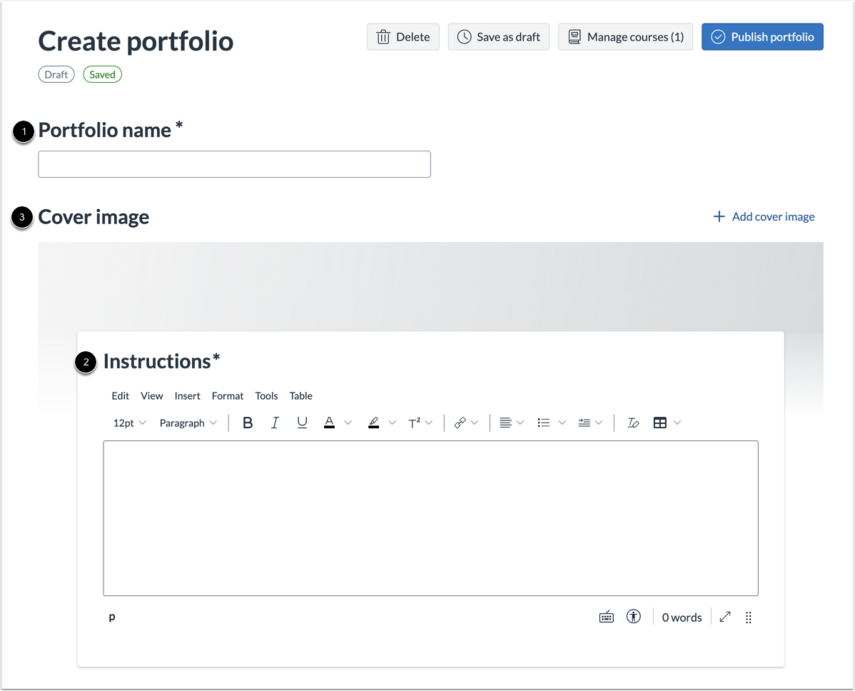
After creating an Evaluation Portfolio, you can add a Portfolio name, an optional Cover image, and Instructions.
Adding Evidence Requirements
Select Add requirement next to Evidence requirements. You can either add an assignment from the course or create a new requirement.

Adding Assignments from Courses
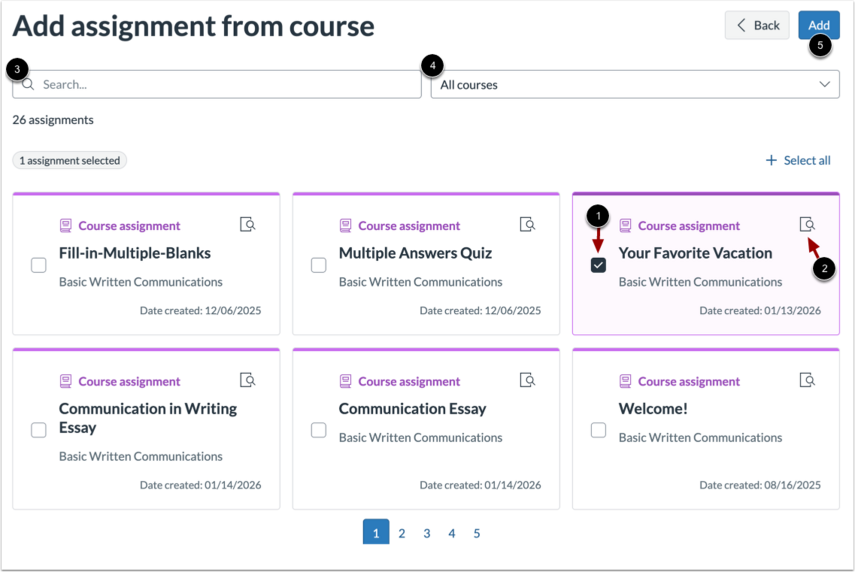
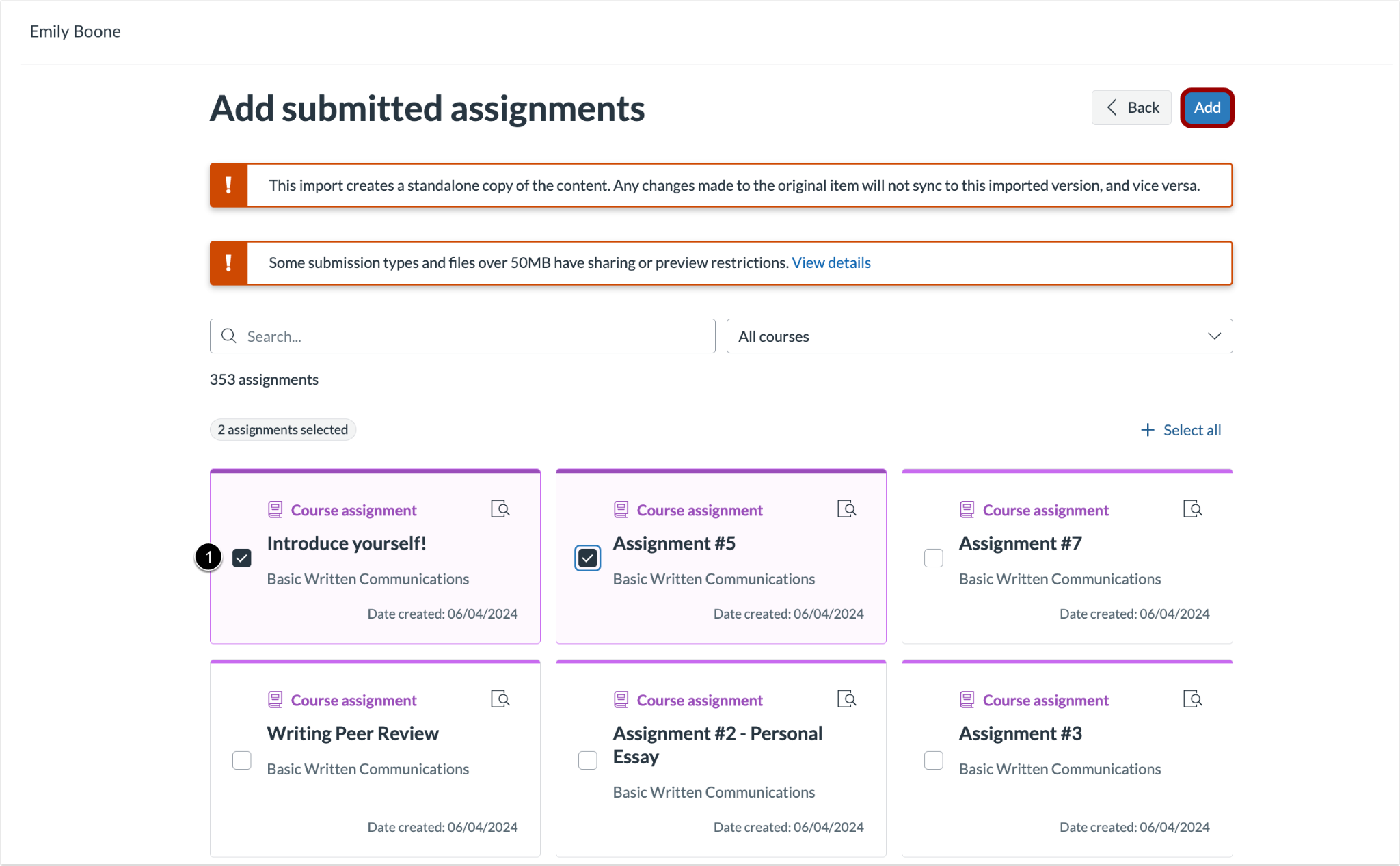
Select the checkbox next to the assignment you want to add as evidence.
Select the review icon on the upper right of the assignment to view the assignment details.
Use the Search field to find assignments.
Select a course from the drop-down menu on the right of the Search field to filter search results.
Select Add to confirm your choices.
Adding Multiple Assignments from Courses
In the Add submitted assignments page, select the desired assignments, then select Add.
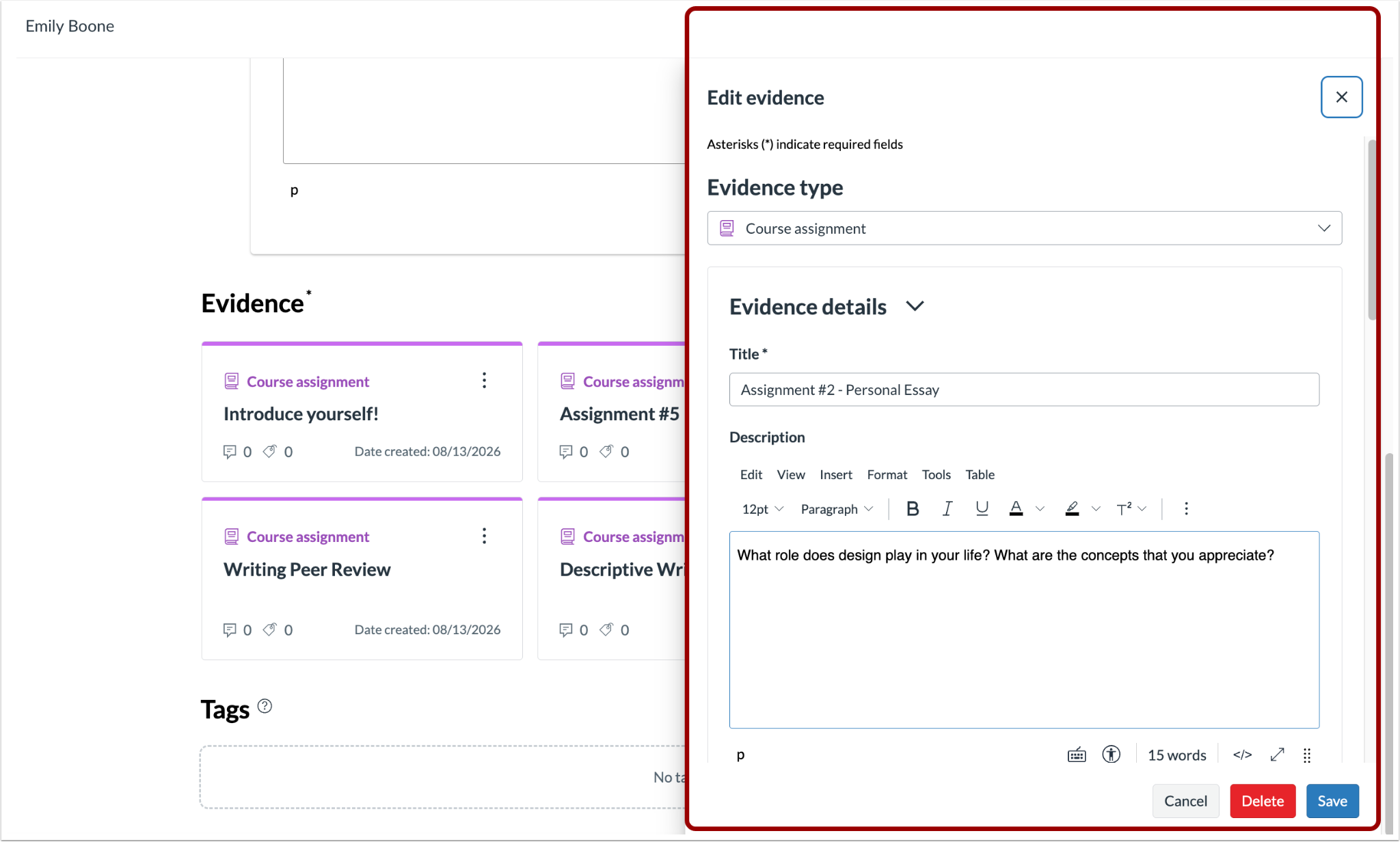
Note: Edited evidence does not sync with Canvas assignments. Changes made in one location do not carry over to the other.
Separate Course Assignment cards are created and displayed in the Evidence section. To Edit, Duplicate, or Delete, select the desired assignment's Options.
Creating a New Requirement
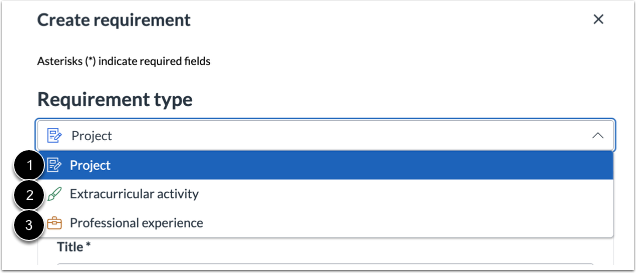
In the Requirement type drop-down menu, select between Project, Extracurricular activity, or Professional experience.
Adding Details
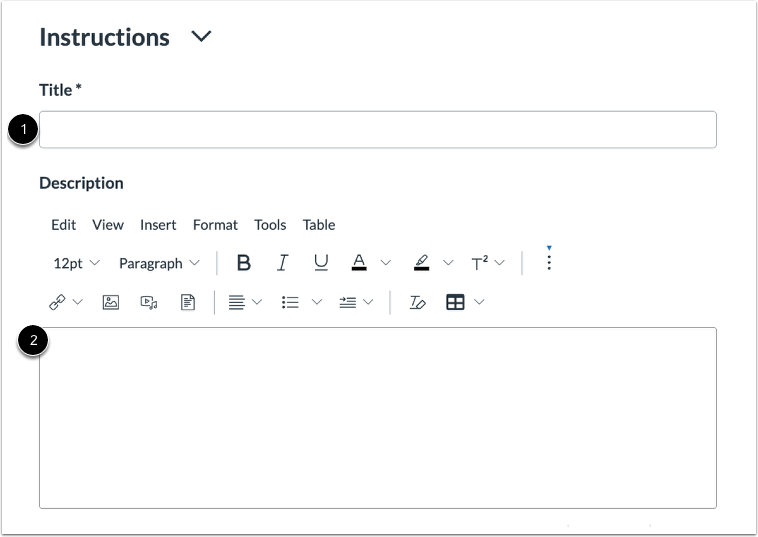
Add a Title and an optional Description.
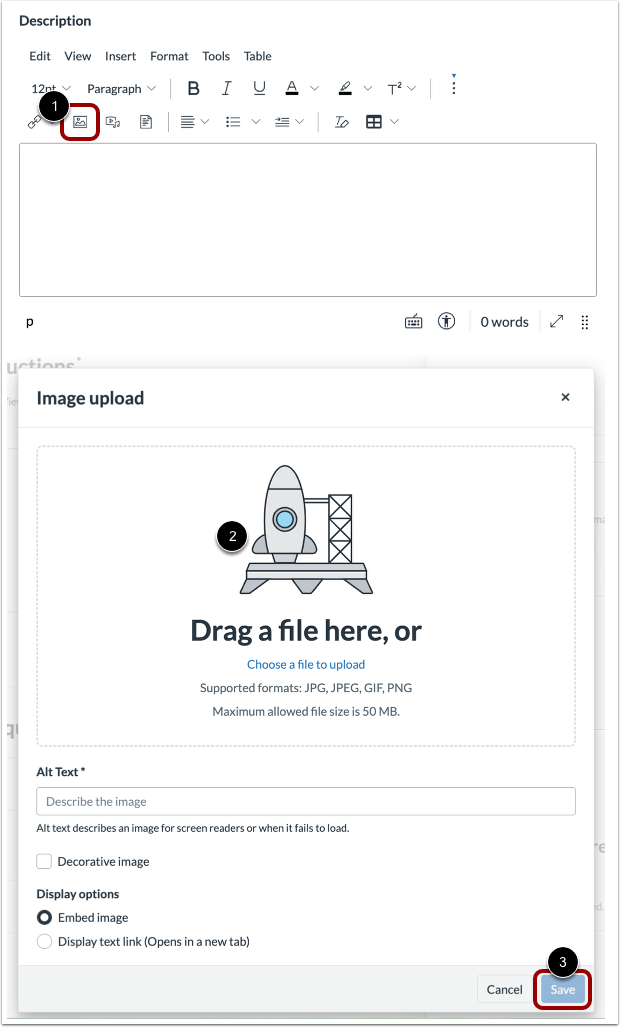
Uploading Images
Select the image icon to add an image.
Note: Upload size is limited to 50 MB.
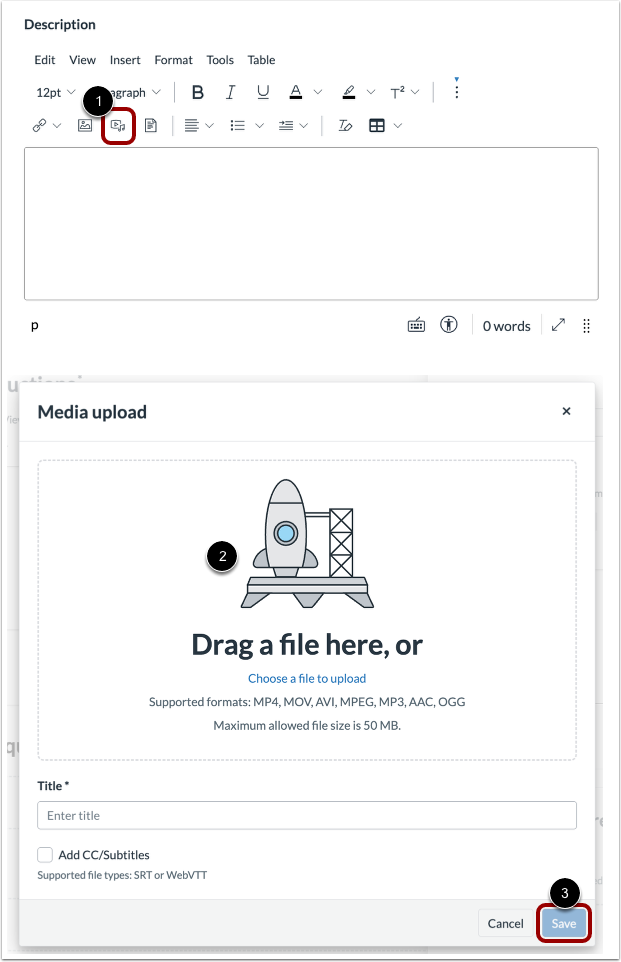
Uploading Videos
Select the video icon to upload a video.
Note: Upload size is limited to 50 MB. Uploaded videos are downloadable from the portfolio.
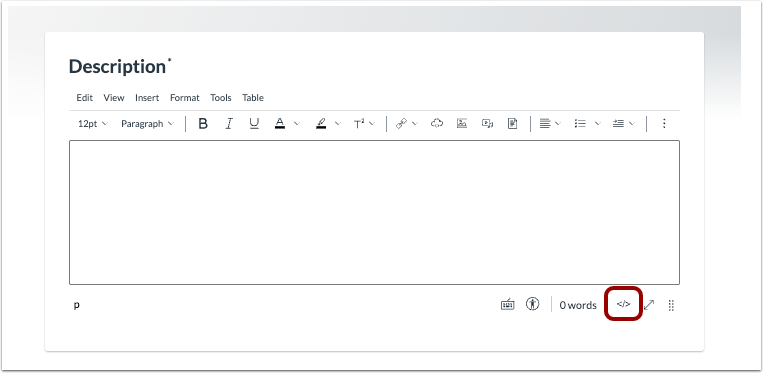
Embedding Content
To embed content in the Rich Text Editor, select the HTML editor icon.
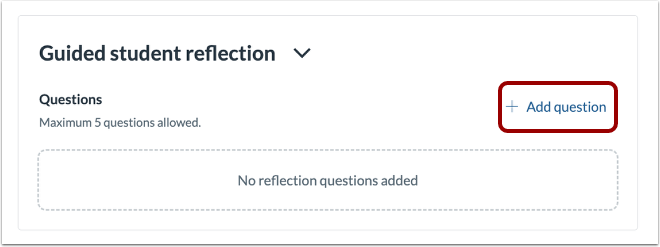
Adding Custom Guided Questions
Select Add question to add custom guided questions to evidence. This allows you to add customizable prompts to guide student learning.
Notes:
- Up to five prompts are supported per evidence item.
- Prompts apply across all supported custom portfolio evidence types, including projects, extracurricular activities, and professional experiences.
- Canvas course assignments do not support guided reflections.
Adding Skills
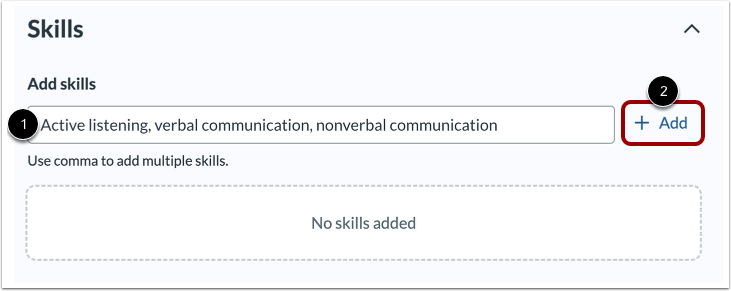
Add skills in the Add skills field, using commas to separate multiple tags. Select Add to finalize your skills.
Adding Links
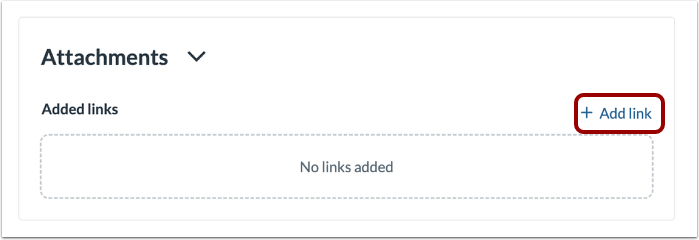
Select Add link to attach links to your evidence.
Saving Evidence
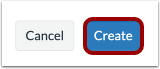
Select Create to save and finalize your evidence.
Adding and Managing Sections
Select Add section to add a new section and Manage sections to edit and reorder existing sections.

Managing Courses
Select Manage courses to add or remove courses in an evaluation portfolio draft.

Saving a Portfolio
Select Save as draft to save a private draft of the portfolio.

Publishing a Portfolio
Select Publish portfolio to finalize and share your portfolio.
Note: Evaluation Portfolios do not support collaboration. Only the user or instructor who created the Evaluation Portfolio can edit its draft or review evidence within it.
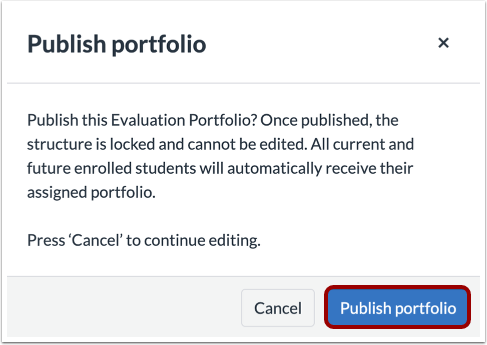
Select Publish portfolio in the following window to confirm publishing.
Note: Student access automatically updates when students join a course after the evaluation portfolio is published.